Many programmers are confused about Soft and Hard Return and how to enter them in MS Word doc programmatically. Soft Return is simply a next line within the paragraph whereas Hard Return is a Paragraph break.
Let me explain it with a explain. Observer the snapshot of word file has "Show Paragraph Mark.." option enabled with some text in blue. Here we are required to replace the work "{{Enter}}" with Soft Return or Hard Return programmatically through C#, VB.Net or VBA as in Snapshot below
soft return at desired position as in below snapshot.
VBA Programmer ( "^l" is the code for soft return)
Sub ReplaceMLBwithPM()
Selection.Find.ClearFormatting
Selection.Find.Replacement.ClearFormatting
With Selection.Find
.Text = "{{Enter}}"
.Replacement.Text = "^l"
.Forward = True
.Wrap = wdFindContinue
.Format = False
.MatchCase = False
.MatchWholeWord = False
.MatchByte = False
.MatchAllWordForms = False
.MatchSoundsLike = False
.MatchWildcards = False
.MatchFuzzy = False
End With
Selection.Find.Execute Replace:=wdReplaceAll
End Sub
Case 2: Replace "{{Enter}}" with Hard Return.
C# or .Net Programmer ( "\r\n" is the code for soft return)
 Use Word replace functionality to replace "{{Enter}}" with "\r\n" character, it will create
hard return at the desired position as in below snapshot.
VBA Programmer ( "^l" is the code for soft return)
Hope you find the article helpful. Share your feedback and comments. Thanks
Hard Returns (paragraph marks) and Soft Returns (manual line breaks):
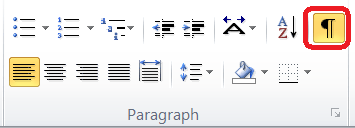
You can show paragraph marks and other hidden formatting symbols by clicking this Show/hidden button in the Home tab. See screenshot:
| Hard Returns (paragraph marks) Symbol: | Soft Returns (manual line breaks) Symbol: | |
 |  |
Let me explain it with a explain. Observer the snapshot of word file has "Show Paragraph Mark.." option enabled with some text in blue. Here we are required to replace the work "{{Enter}}" with Soft Return or Hard Return programmatically through C#, VB.Net or VBA as in Snapshot below
 |
| Highlighted text showing positions to be replaced with Soft or Hard Return |
Case 1: Replace "{{Enter}}" with soft Return.
C# or .Net Programmer ( "\v" is the code for soft return) 
Use Word replace functionality to replace "{{Enter}}" with "\v" character, it will createsoft return at desired position as in below snapshot.
 |
| Highlighted text showing Soft Return Symbol and proceeding text moved to next line. |
VBA Programmer ( "^l" is the code for soft return)
Sub ReplaceMLBwithPM()
Selection.Find.ClearFormatting
Selection.Find.Replacement.ClearFormatting
With Selection.Find
.Text = "{{Enter}}"
.Replacement.Text = "^l"
.Forward = True
.Wrap = wdFindContinue
.Format = False
.MatchCase = False
.MatchWholeWord = False
.MatchByte = False
.MatchAllWordForms = False
.MatchSoundsLike = False
.MatchWildcards = False
.MatchFuzzy = False
End With
Selection.Find.Execute Replace:=wdReplaceAll
End Sub
Case 2: Replace "{{Enter}}" with Hard Return.
C# or .Net Programmer ( "\r\n" is the code for soft return)
hard return at the desired position as in below snapshot.
 |
| Highlighted text showing Hard Return Symbol and proceeding text moved to the next paragraph. |
VBA Programmer ( "^l" is the code for soft return)
Sub ReplaceMLBwithPM()
Selection.Find.ClearFormatting
Selection.Find.Replacement.ClearFormatting
With Selection.Find
.Text = "{{Enter}}"
.Replacement.Text = "^p"
.Forward = True
.Wrap = wdFindContinue
.Format = False
.MatchCase = False
.MatchWholeWord = False
.MatchByte = False
.MatchAllWordForms = False
.MatchSoundsLike = False
.MatchWildcards = False
.MatchFuzzy = False
End With
Selection.Find.Execute Replace:=wdReplaceAll
End Sub
Selection.Find.ClearFormatting
Selection.Find.Replacement.ClearFormatting
With Selection.Find
.Text = "{{Enter}}"
.Replacement.Text = "^p"
.Forward = True
.Wrap = wdFindContinue
.Format = False
.MatchCase = False
.MatchWholeWord = False
.MatchByte = False
.MatchAllWordForms = False
.MatchSoundsLike = False
.MatchWildcards = False
.MatchFuzzy = False
End With
Selection.Find.Execute Replace:=wdReplaceAll
End Sub
Hope you find the article helpful. Share your feedback and comments. Thanks

Nice article. It's very helpful to me. Thank you. Please check my Remove Line Breaks Online Tool.
ReplyDelete