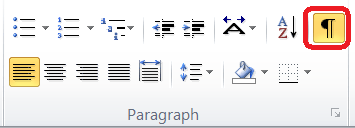
Microsoft Word is one of the most popular word processing software available in the market. It provides a rich set of features that can be used to create, edit, and format text documents. One of the important formatting features of Word is the ability to add Hard Return (Paragraph Break) or Soft Return (Line Break) in a document. In this blog article, we will explore how to programmatically add Hard and Soft Returns in a MS Word document using C#.
Adding Hard Return (Paragraph Break) Programmatically:
Adding a Hard Return in a Word document using C#, VB.Net or VBA is quite simple. Here are the steps to add a Hard Return in a Word document:
Step 1: Create a Word Application object.
Adding Soft Return (Line Break) Programmatically:
Adding a Soft Return in a Word document using C#, VB.Net or VBA is similar to adding a Hard Return. Here are the steps to add a Soft Return in a Word document:
Step 1: Create a Word Application object.
Conclusion:
In this blog article, we have seen how to programmatically add Hard and Soft Returns in a MS Word document using C#, VB.Net or VBA. Adding these formatting features can make a document more readable and easy to understand. With these simple steps, you can easily add Hard and Soft Returns in your Word documents programmatically.
C#Word.Application wordApp = new Word.Application();
Step 2: Open the Word document.C#Word.Document doc = wordApp.Documents.Open(@"C:\MyDocument.docx");
Step 3: Move the cursor to the end of the paragraph where you want to insert the Hard Return.C#object unit = Word.WdUnits.wdParagraph;
object extend = Word.WdMovementType.wdExtend;
wordApp.Selection.MoveEnd(ref unit, ref extend);
Step 4: Insert a Hard Return.C#object missing = System.Reflection.Missing.Value;
wordApp.Selection.TypeParagraph();
Step 5: Save and Close the document.C#doc.Save();
doc.Close();
Adding Soft Return (Line Break) Programmatically:
Adding a Soft Return in a Word document using C#, VB.Net or VBA is similar to adding a Hard Return. Here are the steps to add a Soft Return in a Word document:
Step 1: Create a Word Application object.
C#Word.Application wordApp = new Word.Application();
Step 2: Open the Word document.C#Word.Document doc = wordApp.Documents.Open(@"C:\MyDocument.docx");
Step 3: Move the cursor to the end of the paragraph where you want to insert the Soft Return.C#object unit = Word.WdUnits.wdParagraph;
object extend = Word.WdMovementType.wdExtend;
wordApp.Selection.MoveEnd(ref unit, ref extend);
Step 4: Insert a Soft Return.C#wordApp.Selection.TypeText("\r\n");
Step 5: Save and Close the document.C#doc.Save();
doc.Close();
Conclusion:
In this blog article, we have seen how to programmatically add Hard and Soft Returns in a MS Word document using C#, VB.Net or VBA. Adding these formatting features can make a document more readable and easy to understand. With these simple steps, you can easily add Hard and Soft Returns in your Word documents programmatically.