Many programmers are confused about Soft and Hard Return and how to enter them in MS Word doc programmatically. Soft Return is simply a next line within the paragraph whereas Hard Return is a Paragraph break.
Let me explain it with a explain. Observer the snapshot of word file has "Show Paragraph Mark.." option enabled with some text in blue. Here we are required to replace the work "{{Enter}}" with Soft Return or Hard Return programmatically through C#, VB.Net or VBA as in Snapshot below
soft return at desired position as in below snapshot.
VBA Programmer ( "^l" is the code for soft return)
Sub ReplaceMLBwithPM()
Selection.Find.ClearFormatting
Selection.Find.Replacement.ClearFormatting
With Selection.Find
.Text = "{{Enter}}"
.Replacement.Text = "^l"
.Forward = True
.Wrap = wdFindContinue
.Format = False
.MatchCase = False
.MatchWholeWord = False
.MatchByte = False
.MatchAllWordForms = False
.MatchSoundsLike = False
.MatchWildcards = False
.MatchFuzzy = False
End With
Selection.Find.Execute Replace:=wdReplaceAll
End Sub
Case 2: Replace "{{Enter}}" with Hard Return.
C# or .Net Programmer ( "\r\n" is the code for soft return)
 Use Word replace functionality to replace "{{Enter}}" with "\r\n" character, it will create
hard return at the desired position as in below snapshot.
VBA Programmer ( "^l" is the code for soft return)
Hope you find the article helpful. Share your feedback and comments. Thanks
Hard Returns (paragraph marks) and Soft Returns (manual line breaks):
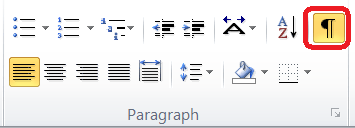
You can show paragraph marks and other hidden formatting symbols by clicking this Show/hidden button in the Home tab. See screenshot:
| Hard Returns (paragraph marks) Symbol: | Soft Returns (manual line breaks) Symbol: | |
 |  |
Let me explain it with a explain. Observer the snapshot of word file has "Show Paragraph Mark.." option enabled with some text in blue. Here we are required to replace the work "{{Enter}}" with Soft Return or Hard Return programmatically through C#, VB.Net or VBA as in Snapshot below
 |
| Highlighted text showing positions to be replaced with Soft or Hard Return |
Case 1: Replace "{{Enter}}" with soft Return.
C# or .Net Programmer ( "\v" is the code for soft return) 
Use Word replace functionality to replace "{{Enter}}" with "\v" character, it will createsoft return at desired position as in below snapshot.
 |
| Highlighted text showing Soft Return Symbol and proceeding text moved to next line. |
VBA Programmer ( "^l" is the code for soft return)
Sub ReplaceMLBwithPM()
Selection.Find.ClearFormatting
Selection.Find.Replacement.ClearFormatting
With Selection.Find
.Text = "{{Enter}}"
.Replacement.Text = "^l"
.Forward = True
.Wrap = wdFindContinue
.Format = False
.MatchCase = False
.MatchWholeWord = False
.MatchByte = False
.MatchAllWordForms = False
.MatchSoundsLike = False
.MatchWildcards = False
.MatchFuzzy = False
End With
Selection.Find.Execute Replace:=wdReplaceAll
End Sub
Case 2: Replace "{{Enter}}" with Hard Return.
C# or .Net Programmer ( "\r\n" is the code for soft return)
hard return at the desired position as in below snapshot.
 |
| Highlighted text showing Hard Return Symbol and proceeding text moved to the next paragraph. |
VBA Programmer ( "^l" is the code for soft return)
Sub ReplaceMLBwithPM()
Selection.Find.ClearFormatting
Selection.Find.Replacement.ClearFormatting
With Selection.Find
.Text = "{{Enter}}"
.Replacement.Text = "^p"
.Forward = True
.Wrap = wdFindContinue
.Format = False
.MatchCase = False
.MatchWholeWord = False
.MatchByte = False
.MatchAllWordForms = False
.MatchSoundsLike = False
.MatchWildcards = False
.MatchFuzzy = False
End With
Selection.Find.Execute Replace:=wdReplaceAll
End Sub
Selection.Find.ClearFormatting
Selection.Find.Replacement.ClearFormatting
With Selection.Find
.Text = "{{Enter}}"
.Replacement.Text = "^p"
.Forward = True
.Wrap = wdFindContinue
.Format = False
.MatchCase = False
.MatchWholeWord = False
.MatchByte = False
.MatchAllWordForms = False
.MatchSoundsLike = False
.MatchWildcards = False
.MatchFuzzy = False
End With
Selection.Find.Execute Replace:=wdReplaceAll
End Sub
Hope you find the article helpful. Share your feedback and comments. Thanks
